
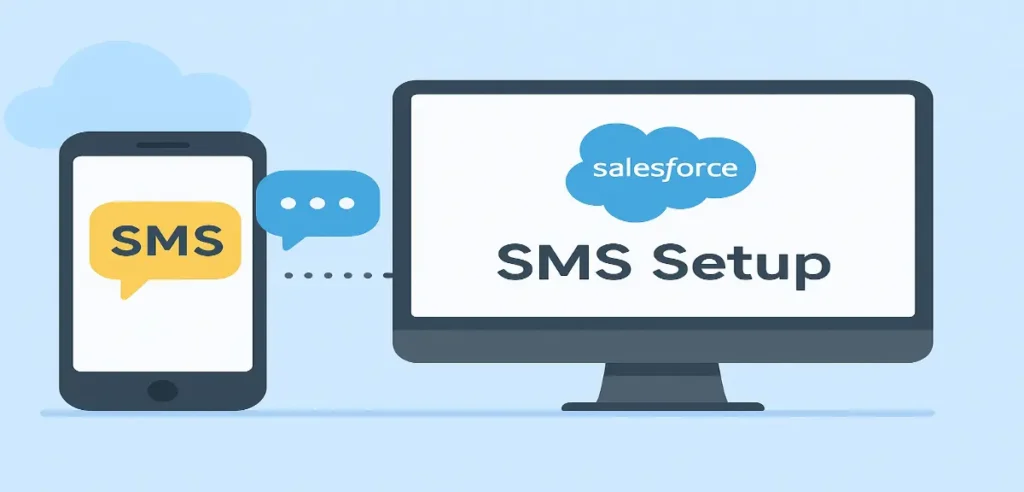
Introduction: Salesforce Marketing Cloud SMS Setup
In a world where instant communication defines customer engagement, SMS continues to be one of the most powerful channels for marketers. With an impressive open rate of over 98% and near-instant read times, SMS unlocks unparalleled engagement opportunities. Salesforce Marketing Cloud SMS empowers brands to deliver real-time, personalized, and automated messaging at scale using Mobile Studio and Journey Builder.
This complete beginner guide walks you through the essentials of SMS marketing in Salesforce from setup and compliance to automation and advanced personalization. Whether you are configuring SMS for the first time or optimizing your existing strategy, this structured guide covers everything you need to launch high-impact mobile campaigns.
Table of Contents
Introduction: Salesforce Marketing Cloud SMS Setup1. What Is Salesforce Marketing Cloud SMS?2. Why Use SMS Marketing in Salesforce?3. Prerequisites for SMS Setup in Marketing Cloud4. Step-by-Step SMS Marketing Setup in Salesforce5. SMS Automation Using Journey Builder6. Best Practices for Successful SMS Marketing7. Common Mistakes to AvoidKey Takeaway:
1. What Is Salesforce Marketing Cloud SMS?
Salesforce Marketing Cloud SMS is a part of Mobile Studio, enabling businesses to send promotional, transactional, and conversational messages through text. It supports:
Outbound SMS (promotions, updates, reminders)
Inbound SMS (keyword responses)
Two-way messaging (customer support or service flows)
Automation via Journey Builder
Personalized, data-driven messaging pulled from Data Extensions
Global messaging through short codes, long codes, and toll-free numbers
It is a powerful communication channel for marketers aiming to enhance customer reach, improve conversions, and deliver timely notifications.
2.1. High Engagement Rates
SMS ensures almost immediate visibility, making it ideal for time-sensitive campaigns like flash sales, confirmations, or alerts.
2.2. Seamless Integration with Journey Builder
Your SMS campaigns can integrate with email, push notifications, WhatsApp, and other touchpoints for unified journeys.
2.3. Personalization at Scale
Using customer attributes, behavior, and segmentation, you can deliver hyper-personalised content in real time.
2.4. Built-in Automation
Salesforce SMS automation helps brands deliver the right message at the right moment, based on triggers such as sign-ups, purchases, or cart abandonment.
Before enabling SMS in your account, several foundations must be in place:
3.1. Mobile Studio Enabled
Ensure your Salesforce account includes Mobile Studio with MobileConnect access.
3.2. Dedicated Code Setup
You need one of the following:
Short Code – Ideal for high-volume marketing
Long Code – Ideal for low-volume or international messaging
Toll-Free Number – Common for customer service
3.3. Compliance Requirements
SMS is a regulated channel. You must ensure:
Opt-in methods are validated
Message frequency is disclosed
STOP/HELP keywords work correctly
Country-specific compliance is followed (TCPA, GDPR, TRAI)
3.4. Contact Data Prepared
Make sure your data includes:
Mobile Number
Opt-in Status
Country Code
Message Preference
Your contacts must exist in All Subscribers and in the selected data extensions.
Below is the structured process for setting up SMS marketing in Salesforce, perfect for beginners.
Step 1: Accessing MobileConnect
Log in to Marketing Cloud
Navigate to Mobile Studio → MobileConnect
Review the dashboard to see available codes, messages, and subscriptions
This is your central hub for creating and managing SMS campaigns.
Step 2: Request a Short or Long Code
Work with Salesforce or your local telecom provider to provision the following:
A Short Code for high-volume automated campaigns
A Long Code for conversational, low-volume messaging
Once approved, Salesforce will activate the code under MobileConnect.
Step 3: Configure Sender Profiles
Sender profiles determine the following:
The Sender ID (short code or long code)
Default keywords
Supported countries
This is essential for ensuring proper routing of outbound and inbound messages.
Step 4: Set Up Keywords for User Interaction
Keywords allow customers to interact with your brand.
Examples:
“JOIN” to subscribe
“STOP” to opt out
“HELP” for instructions
To configure:
Go to MobileConnect → Administration → Keywords
Create a new keyword
Associate it with a short code
Define actions (e.g., add to list, send confirmation)
Step 5: Create an SMS Message
There are different message types in MobileConnect:
5.1. Outbound Messages
Send promotional or informational campaigns to a list or data extension.
Includes:
Flash sales
Updates
Announcements
5.2. Triggered Messages
Send real-time messages based on actions:
Confirmation codes
Delivery notifications
Appointment reminders
5.3. Automated Messages
These run based on schedules or journeys.
Step 6: Personalize Your SMS Content
Salesforce allows for dynamic personalization using:
Contact attributes
Data Extension fields
AMPscript
Example:
Hi %%FirstName%%, your order %%OrderNumber%% has shipped!This enhances relevance and improves engagement.
Step 7: Define Audience and Segmentation
Before sending SMS:
Choose Subscriber Lists or Data Extensions
Apply filters
Create segments based on demographics, behavior, or past engagement
Segmentation ensures more accurate, high-performing campaigns.
Step 8: Test Your SMS
Always test your message:
Send test SMS to your device
Check personalization fields
Validate link tracking
Check opt-in/opt-out flows
Testing prevents errors and ensures compliance.
Step 9: Launch Your SMS Campaign
Once testing is complete, click Send or schedule the message.Monitor:
Delivered messages
Bounce rate
Opt-out rate
Link clicks
Conversions
All reporting is available in MobileConnect Analytics.
One of the biggest strengths of Marketing Cloud is Salesforce SMS automation.
How SMS Automation Works
Journey Builder allows you to automate messages based on:
Customer actions (purchases, sign-ups)
Events (birthdays, renewals)
Real-time triggers
SMS Activities in Journey Builder
You can add:
Send SMS Activity
Wait steps (delay for hours or days)
Decision splits (send different SMS based on behavior)
Example Automated Journeys
Welcome Series Journey
Customer signs up
Sends “Welcome to our community” SMS
After 2 days: Send discount offer
After 5 days: Survey SMS
Appointment Reminder Journey
Event-triggered
Sends SMS 24 hours before appointment
Follow-up confirmation SMS
Order Status Journey
Automatically sends:Order confirmation
Shipping alert
Delivery confirmation
6.1. Keep It Short and Clear
Limit to 150–160 characters. Focus on clarity and value.
6.2. Always Include Opt-Out Instructions
Example: “Reply STOP to unsubscribe.”
6.3. Use Time-Optimized Sending
Avoid early mornings or late nights.
6.4. Personalize Messages
Use customer attributes for more relevance.
6.5. Track & Optimize Performance
Monitor performance through MobileConnect analytics.
6.6. Use Link Shorteners
To save characters and improve tracking.
Sending too many messages
Ignoring compliance requirements
Not testing before launch
Sending irrelevant promotions
Using long URLs
Not segmenting your audience
Salesforce Marketing Cloud SMS is one of the most powerful tools for reaching customers instantly and driving higher engagement. From setup to automation, Salesforce provides all the capabilities needed for personalized messaging, real-time notifications, and seamless customer journeys.
This Marketing Cloud SMS beginner guide walks you step-by-step through setup, configuration, automation, and best practices so you can confidently launch your SMS strategy. Whether you’re sending promotional campaigns or automated transactional messages, SMS is a vital channel for modern customer experience.
Part of the team turning Salesforce and AI strategy into shipped, measurable outcomes for enterprises across five regions.