
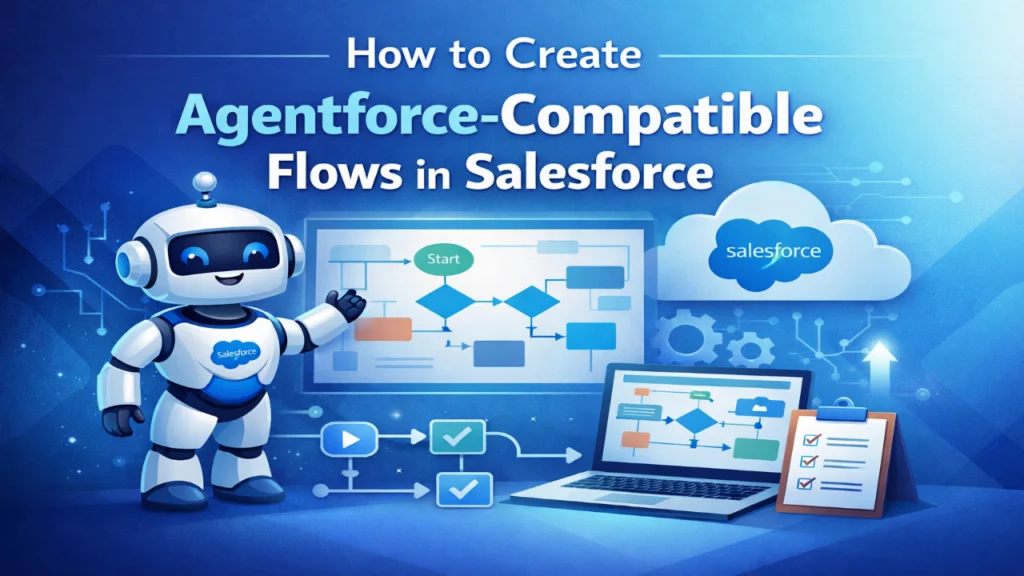
Introduction: Create Agentforce-Compatible Flows in Salesforce
Creating Agentforce-Compatible Flows in Salesforce empowers administrators and developers to extend AI agents’ capabilities beyond conversation into automated actions. This comprehensive guide walks through the process step-by-step, enabling seamless integration for real-world use cases like record creation or data updates.
Table of Contents
Introduction: Create Agentforce-Compatible Flows in Salesforce
Understanding Agentforce and Flows
Prerequisites for Building
Step 1: Create the Autolaunched Flow
Step 2: Define Input Variables
Step 3: Add Core Flow Elements
Step 4: Handle Outputs and Errors
Step 5: Create Agent Action
Step 6: Assign to Agent Topic
Best Practices for Compatibility
Common Use Cases
Troubleshooting Issues
Advanced Techniques
Deployment and Monitoring
Understanding Agentforce and Flows
Agentforce represents Salesforce’s autonomous AI agent platform, allowing agents to handle complex tasks through natural language while invoking backend automations. Flows serve as the declarative backbone, specifically autolaunched flows (no trigger) that agents can call as actions without user interaction.
These compatible flows accept inputs from agents, such as record IDs or customer data, and produce outputs like success confirmations or error messages. The synergy combines Agentforce’s reasoning with Flow Builder’s reliability, reducing custom code needs.
Prerequisites for Building
Ensure your org has Agentforce enabled via Setup > Agentforce > Agents, along with Flow Builder access. Permissions require “Manage Flows” and “Agent Actions” for the profile or permission set.
Familiarity with variables, elements like Retrieve Records, and fault paths is essential. Test in a sandbox first, as flows interact with live data once assigned to agents.
Step 1: Create the Autolaunched Flow
Navigate to Setup > Flows > New Flow. Select “Autolaunched Flow (No Trigger)”, this type runs programmatically without screens or triggers.
Name it descriptively, e.g., “Issue Resort Credit”, and set the API name accordingly. Please save it as a draft to enter the canvas.
Step 2: Define Input Variables
Agents pass data via inputs, so create variables early. In the Toolbox, select Manager > New Resource:
Input Variable for Contact ID: Resource Type: Variable; API Name: contactId; Data Type: Text; Availability: Available for input and output; Input/Output Type: Input only.
Collection for Records: For multi-record scenarios, create varBookings (Record Collection, Object: Booking, available for output).
These ensure the agent supplies necessary context, like a customer’s ID, from the conversation.
Step 3: Add Core Flow Elements
Build logic with these elements:
Get Records: Drag from Toolbox. Set Object: Credit__c (custom object example); Conditions: ContactId equals {!contactId}. Store results in a record variable.
Create Records: For new records, map fields from inputs, e.g., ‘Amount: 100’. Contact: {!contactId}.
Assignment/Decision: Use to validate data or route based on conditions.
Connect elements sequentially: Start > Obtain Records > Decision > Create Records.
Step 4: Handle Outputs and Errors
Agents expect responses, so define outputs:
Success Output: Create a text variable called “resultMessage” (available for output): “Credit issued successfully.”
Error Output: Variable “errorMessage” for faults, e.g., “Insufficient balance.”
For faulty connectors, assign an error message and connect to an end screenless outcome.
Step 5: Create Agent Action
Flows alone don’t integrate, wrap in an agent action:
Setup > Agent Actions > New.
Reference Action Type: Flow reference Action: Select your flow (e.g., Issue Resort Credit).
The label and API name automatically populate; add a description, like “Issues credit for resort bookings”.
Permissions: Assign to agent profiles via Agent Action Permission Sets.
Step 6: Assign to Agent Topic
Agents organise actions based on topics:
Agent Builder > Your Agent > Topics > New Topic.
Add the Agent Action to the topic’s action list.
Test topic prompts: “Issue credit for contact XYZ” should invoke the flow.
Best Practices for Compatibility
Naming Conventions: Use descriptive API names without spaces; prefix custom objects.
Governor Limits: Keep flows under 2,000 elements; avoid loops on large collections.
Security: Flows inherit running user’s context, use “All Data” sparingly; enable field-level security.
Testing: Use Flow Debugger with mock inputs; simulate agent calls via Apex or screen flows.
Prompt Engineering: In agent topics, guide natural language: “For credit requests, extract the contact ID first.”
Common Use Cases
Customer Service: Flows for case escalation and refund processing using contact ID input.
Sales Automation: Update opportunities or create tasks based on agent insights.
Data Enrichment: Obtain records to fetch related accounts and output summaries.
Example: A service agent detects booking issues, passes the booking ID to a flow that checks eligibility and emails confirmation.
Troubleshooting Issues
Flow Not Visible: Ensure “Active” status and org-wide sharing.
Input Mismatches: The agent passes strings and matches variable types exactly.
Permissions Errors: Verify the agent profile has flow access via the Setup Audit Trail.
Timeouts: Optimize queries; use indexes on custom fields.
Debug with debug logs filtered by “FLOW” and the agent user.
Advanced Techniques
Subflows: Modularise complex logic; the main flow calls subflows as actions.
Invoking Agents from Flows: Use AI Agent actions in flows for hybrid workflows.
Data Cloud Integration: Pass Data Cloud IDs for unified profiles.
Apex Fallback: For limits exceeded, expose Apex as invocable, but prefer flows.
These extend Agentforce to orchestrated, multi-step automations.
Deployment and Monitoring
Activate the flow, assign actions, and deploy via change sets, including flows, actions, and permission sets. Monitor via Event Logs > Agentforce and Flow Interviews.
Scale by versioning flows; use the optimiser for bottlenecks. Regular audits ensure compliance with evolving Agentforce updates.
Founder and CEO of iTechCloud Solution, a Salesforce consulting and product partner since 2017. He sets engagement strategy and stays the commercial owner of every account, working with clients across Salesforce, AI and data from the first call through to go-live.
Connect on LinkedIn