
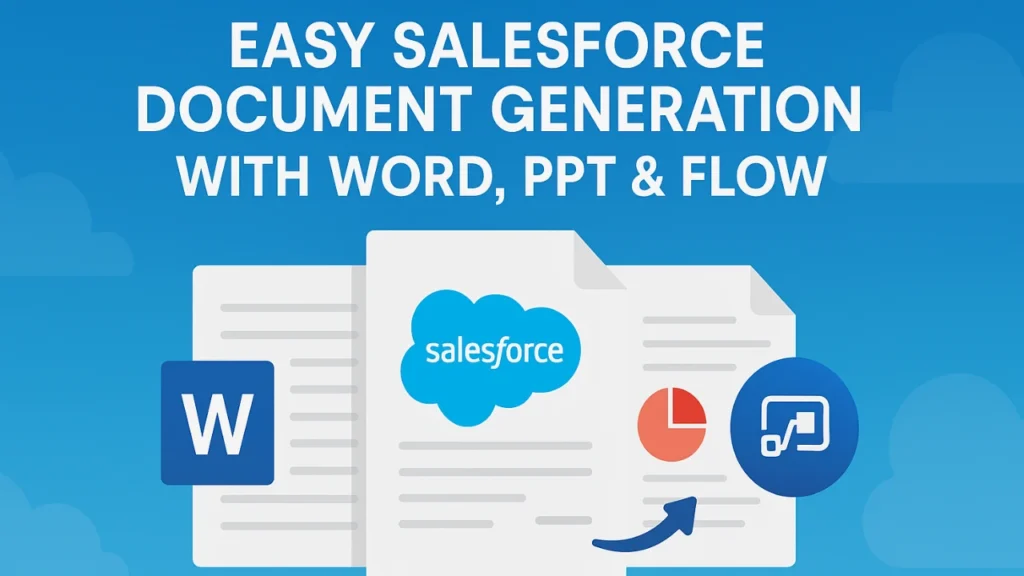
Introduction: Salesforce Document Generation with Word, PPT & Flow
In today’s fast-paced business environment, automating document generation is crucial for efficiency, accuracy, and scalability. Salesforce, as a leading CRM platform, offers powerful tools to create, customise, and automate documents such as contracts, proposals, invoices, and presentations directly within your Salesforce org.
This blog explores how to set up easy Salesforce document generation using these tools, along with best practices and real-world use cases.
Table of Contents
Introduction: Salesforce Document Generation with Word, PPT & FlowWhy Automate Document Generation in Salesforce?Method 1: Salesforce Document Generation with Microsoft WordStep 1: Use Salesforce Document Generation ToolsStep 2: Create a Word Template with Merge FieldsStep 3: Automate with Salesforce FlowMethod 2: Salesforce PowerPoint (PPT) GenerationStep 1: Use a Third-Party Tool (Conga, Nintex, or Apex)Step 2: Design a PowerPoint Template with PlaceholdersStep 3: Trigger PPT Generation via FlowMethod 3: Using Salesforce Flow for Document AutomationStep 1: Set Up a Flow TriggerStep 2: Integrate with Document Generation ToolsStep 3: Store or Distribute the DocumentBest Practices for Salesforce Document GenerationConclusion
Why Automate Document Generation in Salesforce?
Manual document creation is time-consuming, error-prone, and difficult to scale. Automating this process in Salesforce provides several benefits:
Time Savings – Eliminate repetitive copy-pasting and formatting.
Accuracy – Reduce human errors in contracts, quotes, and reports.
Consistency – Ensure all documents follow company branding.
Compliance – Automatically apply legal terms and disclaimers.
Scalability – Generate hundreds of documents in minutes.
Salesforce offers multiple ways to automate document generation, including:
Salesforce Document Generation with Word & PPT (using Conga, DocuSign, S-Docs, or native tools)
Salesforce Flow for automation logic
Apex & Lightning Web Components for custom solutions
This guide focuses on no-code/low-code approaches using Word, PPT, and Salesforce Flow.
Method 1: Salesforce Document Generation with Microsoft Word
Step 1: Use Salesforce Document Generation Tools
Salesforce supports merge fields in Word documents, allowing dynamic content insertion. Popular solutions include:
Conga Composer – A powerful document generation tool that integrates with Salesforce.
S-Docs – A native Salesforce solution for PDF and Word generation.
DocuSign Gen for Salesforce – For e-signature-enabled documents.
Step 2: Create a Word Template with Merge Fields
Design a Word Template – Use Microsoft Word to create a standard document (e.g., a contract or proposal).
Insert Salesforce Merge Fields – Use placeholders like ‘{{Account’. Name}} or {{Opportunity.Amount}}.
Upload to Salesforce – Store the template in Files, Documents, or a Content Library.
Step 3: Automate with Salesforce Flow
Create a Flow (Screen Flow or Autolaunched Flow).
Use a “Generate Document” action (Conga, S-Docs, or Salesforce-native actions).
Pass record data into the template.
Save or send the generated document (as PDF or Word).
Example Use Case:
Automated Proposal Generation – When an opportunity reaches a certain stage, Flow generates a customized proposal in Word format and emails it to the client.
Method 2: Salesforce PowerPoint (PPT) Generation
Generating PowerPoint presentations dynamically is useful for:
Sales pitch decks
Quarterly business reviews
Marketing collateral
Step 1: Use a Third-Party Tool (Conga, Nintex, or Apex)
Since Salesforce doesn’t natively support PPT generation, third-party apps like Conga Composer or custom Apex solutions are needed.
Step 2: Design a PowerPoint Template with Placeholders
Create a PPT template with slides for different sections (e.g., company overview, product features, pricing).
Use merge tags (e.g., {{Account.Industry}}, {{User.Title}}).
Upload the template to Salesforce or Conga.
Step 3: Trigger PPT Generation via Flow
Set up a flow to run when a record meets criteria (e.g., opportunity stage = “proposal”).
Call Conga Composer or another PPT generation tool.
Attach the PPT to the record or email it to stakeholders.
Example Use Case:
Automated Investor Pitch Deck – Salesforce auto-generates a branded investor presentation with relevant data.
Method 3: Using Salesforce Flow for Document Automation
Salesforce Flow is a powerful automation tool that can trigger document generation without code.
Step 1: Set Up a Flow Trigger
Record-Triggered Flow (e.g., when an opportunity is updated).
Scheduled Flow (e.g., generate weekly reports).
Step 2: Integrate with Document Generation Tools
Use Quick Actions, Apex, or External Services to call document generators.
Example:Conga Composer (via Flow Action)
S-Docs (native Salesforce solution)
Custom Apex for advanced logic
Step 3: Store or Distribute the Document
Save to Files or Attach to Records.
Send via email (using email alerts in Flow).
Share via Chatter or Slack.
Example Use Case:
Automated Contract Renewals – When a contract’s end date is near, Flow generates a renewal agreement, attaches it to the record, and notifies the account manager.
Use Templates Wisely – Keep them simple and reusable.
Test Merge Fields – Ensure data populates correctly.
Error Handling – Set up flow decisions to handle missing data.
Security & Permissions – Restrict document access as needed.
Version Control – Update templates when business processes change.
Automating document generation in Salesforce using Word, PPT, and Flow saves time, reduces errors, and enhances productivity. Whether you’re generating contracts, proposals, or presentations, Salesforce’s ecosystem provides flexible solutions for every business need.
By leveraging no-code tools like Flow and third-party apps (Conga, S-Docs), organizations can streamline operations while maintaining professionalism and compliance. Start automating your document workflows today and experience the power of seamless Salesforce integration!
Part of the team turning Salesforce and AI strategy into shipped, measurable outcomes for enterprises across five regions.