

How to Deploy Custom Metadata Records Using Change Set

Introduction: Deploy Custom Metadata Records Using Change Set
In Salesforce development, configuration-driven architecture is a best practice for building scalable, maintainable, and environment-independent solutions. Custom Metadata Types (CMDTs) play a critical role in achieving this by allowing developers and admins to store application configuration as metadata rather than hard-coded values or data records.
One of the most common real-world challenges teams face is deploying Custom Metadata records from one org to another, especially from Sandbox to Production. While Change Sets are widely used for deployments, many Salesforce professionals still find Custom Metadata deployment confusing due to its unique behavior compared to custom objects or custom settings.
This blog provides a step-by-step, end-to-end guide on how to deploy Custom Metadata records using Change Sets, along with best practices, limitations, and common pitfalls to avoid.
Table of Contents
What is Custom Metadata Types?
Before diving into deployment, it’s important to understand what Custom Metadata Types are and why they matter.
What Are Custom Metadata Types?
Custom Metadata Types allow you to:
- Store configuration data as metadata
- Package and deploy configuration across environments
- Access values via Apex, Flows, Validation Rules, and formulas
- Avoid environment-specific hardcoding
Unlike Custom Settings:
- CMDT records are deployable
- They are cached automatically
- They support record-level security by design
Common Use Cases
- Feature toggles
- Business rules configuration
- Integration endpoints
- UI behavior control
- Validation thresholds
- Country- or region-specific logic
Why Deploy Custom Metadata Records Using Change Sets?
Change Sets are commonly used because:
- They are admin-friendly
- No command-line tools required
- Ideal for small to medium deployments
- Suitable for orgs without CI/CD pipelines
Deploying Custom Metadata using Change Sets ensures:
- Consistency across environments
- Reduced deployment errors
- Faster release cycles
However, CMDT deployments behave differently than standard metadata, which is why a clear process is essential.
Key Prerequisites Before Deployment
Before deploying Custom Metadata records using Change Sets, ensure the following:
- The Custom Metadata Type exists in the target org
- If not, include it in the Change Set
- Source and target orgs are connected
- Typically Sandbox → Production
- Deployment permissions
- “Deploy Change Sets” permission is required
- Record visibility
- Ensure the records are active and not protected
Step-by-Step: Deploying Custom Metadata Records Using Change Sets
Step 1: Create or Verify Custom Metadata Type
Navigate to:
Setup → Custom Metadata Types
- Create a new Custom Metadata Type (if not already created)
- Define fields such as:
- Text
- Checkbox
- Number
- Picklist
Example:
- Metadata Type:
Integration_Config__mdt - Fields:
Endpoint_URL__cIs_Active__cTimeout__c
Save and ensure the metadata type is active.
Step 2: Create Custom Metadata Records
- Open the Custom Metadata Type
- Click Manage Records
- Create records with required values
- Save records
These records represent the configuration you want to deploy.
Step 3: Create an Outbound Change Set
Navigate to:
Setup → Change Sets → Outbound Change Sets
- Click New
- Enter:
- Name
- Description
- Save
This Change Set will contain the metadata to be deployed.
Step 4: Add Custom Metadata Type to the Change Set
This is a critical step.
- Open the Change Set
- Click Add
- Select Custom Metadata Type
- Choose your metadata type
- Click Add to Change Set
This ensures the metadata structure exists in the target org.
Step 5: Add Custom Metadata Records
Now add the records:
- Click Add
- Select Custom Metadata
- Choose the Custom Metadata Type
- Select one or more records
- Click Add to Change Set
Important Note:
You must explicitly select records. Adding the metadata type alone does NOT include records.
Step 6: Upload the Change Set
- Click Upload
- Select the target org
- Confirm upload
Salesforce validates the Change Set and sends it to the target org.
Step 7: Deploy in the Target Org
In the target org:
- Go to Setup → Change Sets → Inbound Change Sets
- Open the uploaded Change Set
- Click Validate (recommended)
- Review deployment details
- Click Deploy
Once deployed, the Custom Metadata records will be available in the target org.
Post-Deployment Verification
After deployment, verify the following:
- Navigate to Setup → Custom Metadata Types
- Open the metadata type
- Click Manage Records
- Confirm:
- Records exist
- Field values are correct
- Activation status is correct
Also test:
- Apex logic
- Flows referencing CMDT
- Validation rules
- UI behavior
Common Issues and How to Fix Them
Issue 1: Records Not Visible After Deployment
Cause:
Records were not added explicitly to the Change Set.
Fix:
Ensure both:
- Custom Metadata Type
- Individual Custom Metadata records
are included.
Issue 2: Deployment Fails Due to Missing Dependencies
Cause:
CMDT is referenced by Apex, Flow, or Validation Rule not included in the Change Set.
Fix:
Use View/Add Dependencies before uploading the Change Set.
Issue 3: Protected Custom Metadata
Cause:
Protected CMDTs cannot be deployed outside managed packages.
Fix:
Ensure Protected is unchecked unless required for managed packages.
Issue 4: Record Overwrite Concerns
Behavior:
Deploying CMDT records overwrites existing records with the same Developer Name.
Best Practice:
Use consistent Developer Names across environments.
Best Practices for Deploying Custom Metadata Using Change Sets
1. Always Use Developer Name Strategically
- Treat Developer Name as a unique identifier
- Avoid environment-specific names
2. Bundle Related Metadata Together
- CMDT
- Apex classes
- Flows
- Validation rules
This reduces runtime errors.
3. Validate Before Deploying
Always run Validate in Production to:
- Catch missing dependencies
- Avoid last-minute failures
- Schedule deployment windows safely
4. Use CMDT Instead of Custom Settings Where Possible
CMDT advantages:
- Deployable
- Version-controlled
- Accessible without SOQL in Apex
5. Document CMDT Usage
Maintain internal documentation covering:
- Purpose of each CMDT
- Field definitions
- Record usage
This helps admins and developers maintain configurations long-term.
Change Sets vs Metadata API (Quick Comparison)
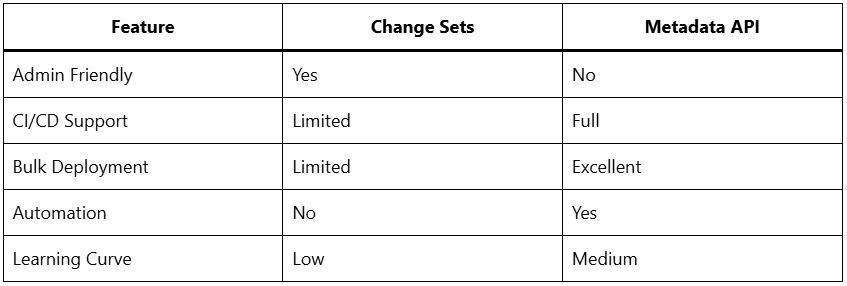
Recommendation:
Use Change Sets for:
- Simple deployments
- Admin-led teams
- Low-frequency releases
Use Metadata API for:
- Enterprise CI/CD pipelines
- High-frequency deployments
Real-World Example
Imagine a Salesforce org using CMDT to control feature rollout:
- Metadata Type:
Feature_Toggle__mdt - Records:
- Enable_New_UI
- Enable_AI_Recommendations
Using Change Sets:
- Admins enable or disable features safely
- Configuration moves seamlessly from Sandbox to Production
- No code changes required
This demonstrates the true power of Custom Metadata deployment.
Key Takeaway:
Deploying Custom Metadata records using Change Sets is a powerful yet often misunderstood capability in Salesforce. When done correctly, it enables configuration-driven development, improves release stability, and reduces technical debt.
By following a structured approach adding both metadata types and records, validating deployments, and adhering to best practices you can confidently manage CMDT deployments across environments. For Salesforce teams aiming to build scalable, enterprise-ready solutions, mastering Custom Metadata deployment is no longer optional it’s essential.