

How to Add Custom Metadata Records in Change Set Salesforce

Introduction: Custom Metadata Records in Change Set Salesforce
Salesforce provides powerful configuration tools that allow teams to customize applications without writing extensive code. One of the most valuable yet often misunderstood features is Custom Metadata Types (CMDT). Custom Metadata Types allow you to store configuration data that can be deployed, versioned, and referenced in Apex, Flow, Validation Rules, and more. However, many Salesforce professionals struggle with one specific challenge: how to move Custom Metadata Records using Change Sets. Unlike custom objects or custom settings, Custom Metadata behaves differently during deployment.
This guide explains what Custom Metadata Types are, why Change Sets work differently, and how to successfully add and deploy Custom Metadata Records using Change Sets in Salesforce, step by step.
Table of Contents
What Are Custom Metadata Types in Salesforce?
Custom Metadata Types are metadata-driven records used to store application configuration data. These records behave like metadata rather than data, which means:
- They can be deployed between orgs
- They are included in source control
- They are accessible in Apex without SOQL limits
- They support packaging and versioning
Common use cases include:
- Feature toggles
- Business rules
- Integration endpoints
- UI configuration
- Environment-specific settings
Unlike Custom Settings, Custom Metadata Types are deployment-friendly and protected from accidental deletion.
Understanding Custom Metadata Records vs Custom Objects
Before working with Change Sets, it’s important to understand the difference:
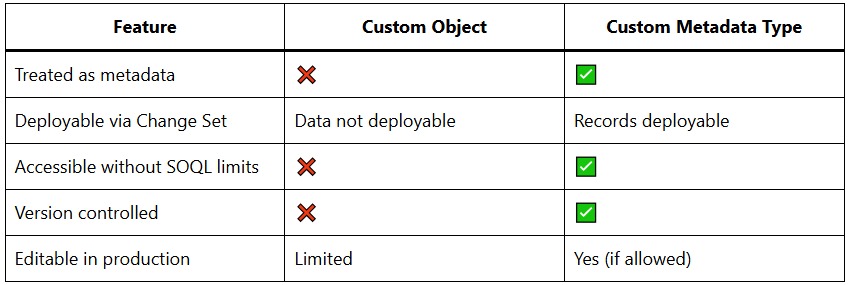
Because Custom Metadata Records are metadata, they must be handled differently during deployment.
Why Custom Metadata Records Don’t Automatically Appear in Change Sets
One of the most common misconceptions is assuming Custom Metadata Records behave like custom object records. In reality:
- Custom Metadata Types must be added first
- Records are added separately
- The record only appears in Change Sets after creation
If the metadata type itself is missing in the target org, record deployment will fail.
Prerequisites Before Adding Custom Metadata Records to a Change Set
Before proceeding, ensure the following:
- You have created the Custom Metadata Type
- At least one Custom Metadata Record exists
- You have deployment access to both source and target orgs
- The Custom Metadata Type is not protected (unless deploying via managed package)
- The record is saved and activated
Step-by-Step: How to Add Custom Metadata Records in Change Set
Step 1: Create or Verify the Custom Metadata Type
Navigate to:
Setup → Custom Metadata Types
Confirm:
- The metadata type exists
- All required fields are defined
- The type is deployed or ready for deployment
If the metadata type does not exist in the target org, you must deploy it first.
Step 2: Create Custom Metadata Records
Go to:
Setup → Custom Metadata Types → Manage Records
Create one or more records:
- Assign a unique Label
- Set the Developer Name
- Populate all required fields
- Save the record
Only saved records can be added to Change Sets.
Step 3: Create an Outbound Change Set
Navigate to:
Setup → Change Sets → Outbound Change Sets
- Click New
- Enter a meaningful name
- Add a description
- Save the Change Set
Step 4: Add the Custom Metadata Type
This step is critical.
- Open the Change Set
- Click Add
- Select Custom Metadata Type
- Choose your metadata type
- Add it to the Change Set
Without adding the metadata type itself, records will not deploy correctly.
Step 5: Add Custom Metadata Records to the Change Set
Now add the records:
- Click Add again
- Select Custom Metadata
- Choose the specific records you want to deploy
- Click Add to Change Set
Each record appears as an individual component.
Step 6: Add Dependencies (If Required)
Custom Metadata Records may be referenced by:
- Apex classes
- Flows
- Validation Rules
- Custom Labels
- Lightning Web Components
Click View/Add Dependencies and confirm all required components are included.
Step 7: Upload the Change Set
- Select the target org
- Click Upload
- Wait for the upload to complete
Salesforce will validate the metadata before deployment.
Deploying Custom Metadata Records in Target Org
Once uploaded:
- Log into the target org
- Navigate to Inbound Change Sets
- Locate your Change Set
- Click Validate (recommended)
- Click Deploy
After deployment:
- The Custom Metadata Type appears
- The records are available immediately
- Apex and Flows referencing them work without reactivation
Common Issues and How to Fix Them
Issue 1: Custom Metadata Record Not Visible in Change Set
Cause
- Record not saved
- Metadata type not selected
- Insufficient permissions
Solution
- Save the record again
- Refresh the Change Set
- Verify admin access
Issue 2: Deployment Fails Due to Missing Metadata Type
Cause
- Record added without adding the metadata type
Solution
- Add the Custom Metadata Type first
- Re-upload the Change Set
Issue 3: Field-Level Errors During Deployment
Cause
- Field added in source org but missing in target org
Solution
- Deploy the updated Custom Metadata Type before records
Issue 4: Protected Custom Metadata
Cause
- Protected flag enabled
- Not deploying via managed package
Solution
- Remove protection or deploy using package upgrade
Best Practices for Deploying Custom Metadata via Change Sets
1. Always Deploy the Metadata Type First
Never deploy records without ensuring the type exists.
2. Use Clear Naming Conventions
Consistent labels and developer names simplify debugging.
3. Limit Environment-Specific Values
Avoid hardcoding URLs or credentials. Use Named Credentials when possible.
4. Validate Before Deploying
Validation helps catch missing dependencies early.
5. Keep Records Modular
Smaller records are easier to maintain and deploy incrementally.
When NOT to Use Change Sets for Custom Metadata
While Change Sets work well, they have limitations. Consider alternatives when:
- Deploying large volumes of records
- Managing multiple environments
- Using CI/CD pipelines
- Working with source control
In such cases, Metadata API or DevOps tools may be more efficient.
Custom Metadata Records vs Custom Settings Deployment
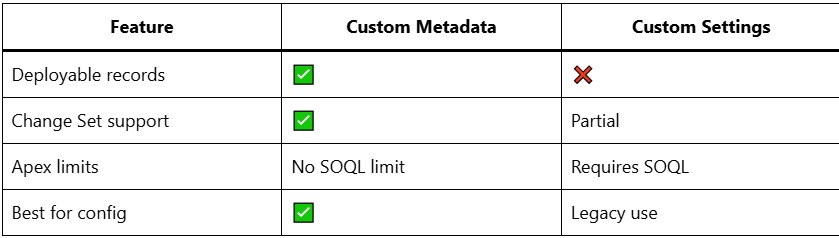
Salesforce recommends Custom Metadata for modern configuration management.
Key Takeaway:
Custom Metadata Types are a cornerstone of scalable Salesforce architecture. When used correctly, they eliminate hardcoded logic, improve maintainability, and simplify deployments across environments.
Understanding how to add Custom Metadata Records in Change Sets ensures smoother releases, fewer deployment errors, and cleaner configuration management. By following the correct order metadata type first, records second and validating dependencies, Salesforce Admins and Developers can deploy configuration changes confidently.
Whether you’re managing feature flags, integration rules, or dynamic business logic, mastering Custom Metadata deployment is a critical Salesforce skill in modern orgs.